How to screen a batch of resumes against one role
A practical workflow for defining a role, submitting resume batches, reviewing exceptions and exporting a shortlist in EnroHire.
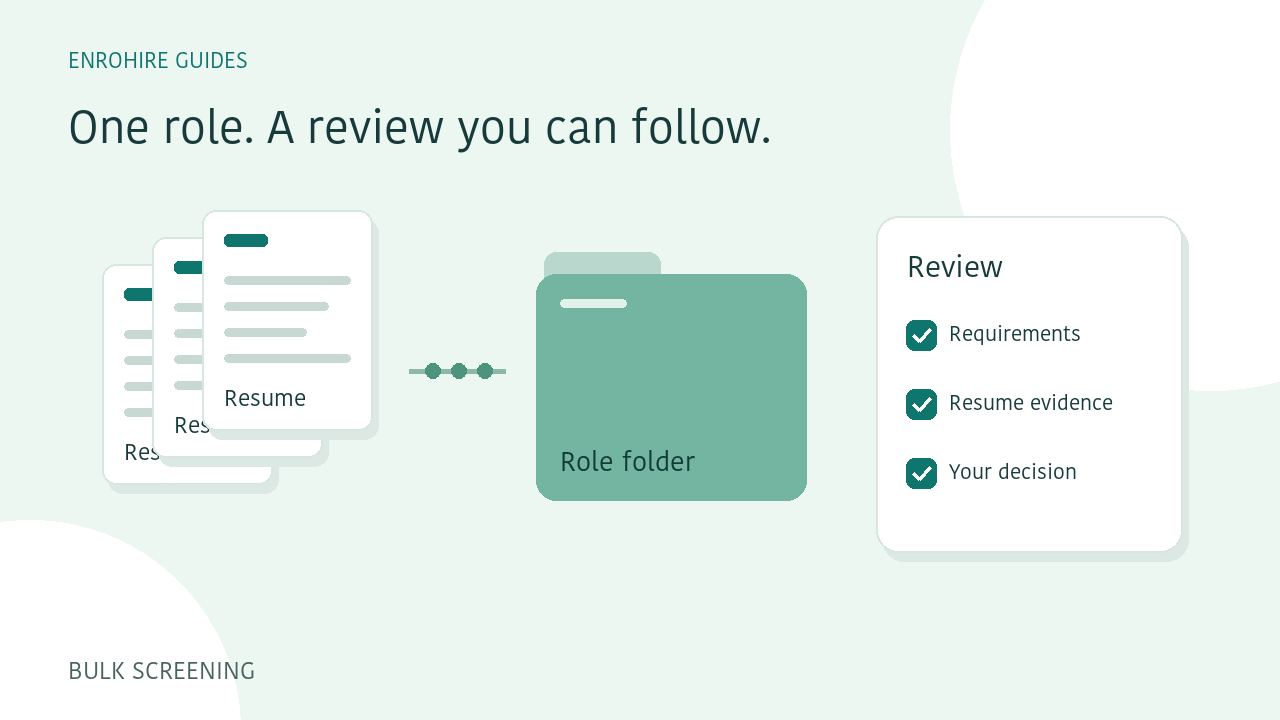
A folder full of resumes is only the beginning of a screening task. Before you compare applicants, you need a clear role brief, a manageable submission and a way to review the evidence behind each assessment. This guide walks through that process in EnroHire, including what to do when some files need attention.
A few things to keep in mind
- Define the role before submitting resumes.
- Keep the page open until upload and submission finish.
- Review uncertain evidence and failed files separately.
- Export the shortlist you have actually reviewed.
Start with the role, rather than the pile of files
Write down the work the person will do. Add the job brief, the minimum relevant experience and the skills that matter to the role. Separate essential requirements from preferred qualifications. A long list of loosely related keywords makes it harder for a recruiter to explain what a useful match looks like.
In EnroHire, each submitted batch keeps the role requirements used for its assessment. Check those requirements before you start. When reviewing a result later, read its saved criteria so you understand the assessment in context.
Prepare a batch you can follow
EnroHire supports PDF, DOCX, DOC, PNG, JPG and WEBP resumes. A batch can contain up to 100 files, with a limit of 10 MB and 20 pages per resume. The workspace shows upload restrictions before submission. Larger collections can be split into additional batches under the same role.
Use filenames that help you recognise the original documents. Check for accidental duplicate selections and remove files that do not belong to the role. Separate uploads of the same person can create separate records, so a clear file collection still matters.
Let upload and submission finish
Keep the page open while files are uploading. Selecting documents is not the same as completing a submission. Wait for the workspace to confirm that the batch has been submitted before you close the page or move away from the upload flow.
After submission, preparation and screening continue in the background. Processing shows the batch progress, including files that complete and files that fail. A completion email links back to the batch. Queue load and document complexity affect how long this takes, so plan your review around the recorded state rather than an assumed finish time.
Give exceptions their own review
A completed batch can still contain failed files. Read the issue shown for each affected document and decide whether you need an unlocked copy, a clearer scan or a corrected export. A result that needs recruiter review is different from a file that could not be assessed.
Screening credits are reserved when a batch is submitted for assessment. A successfully stored assessment consumes its credit. Failed preparation or screening returns the reservation. Use the workspace credit and batch records to understand the outcome instead of assuming that every selected file produced a result.
Review the evidence before updating a stage
Use the candidate filters to choose a review order, then inspect individual assessments beside the original resume. Look at skill evidence, relevant experience and any uncertainty. Page references help you locate material; they are not independently verified quotations or proof that a statement in a resume is true.
Add notes that explain your decision and move candidates through the hiring stages yourself. A role-fit score can help you organise a review, but it does not replace the work of deciding which applicants should move forward.
Export the results you intend to use
When your filters and review decisions are ready, request a CSV export of the saved results. Existing-result exports do not use screening credits. Check the selected role and filters before sharing the file, and read the contact-detail status where information is missing or uncertain.
Generated exports are available for 24 hours. You can generate another file from the saved results if a download expires. A CSV contains a copy of candidate information, so keep track of which version you share and who needs it for the hiring review.
Your review checklist
- Role brief and essential skills checked
- Upload and submission confirmed
- Failed files and uncertain assessments reviewed
- Candidate stages and notes updated
- Export scope checked before downloading
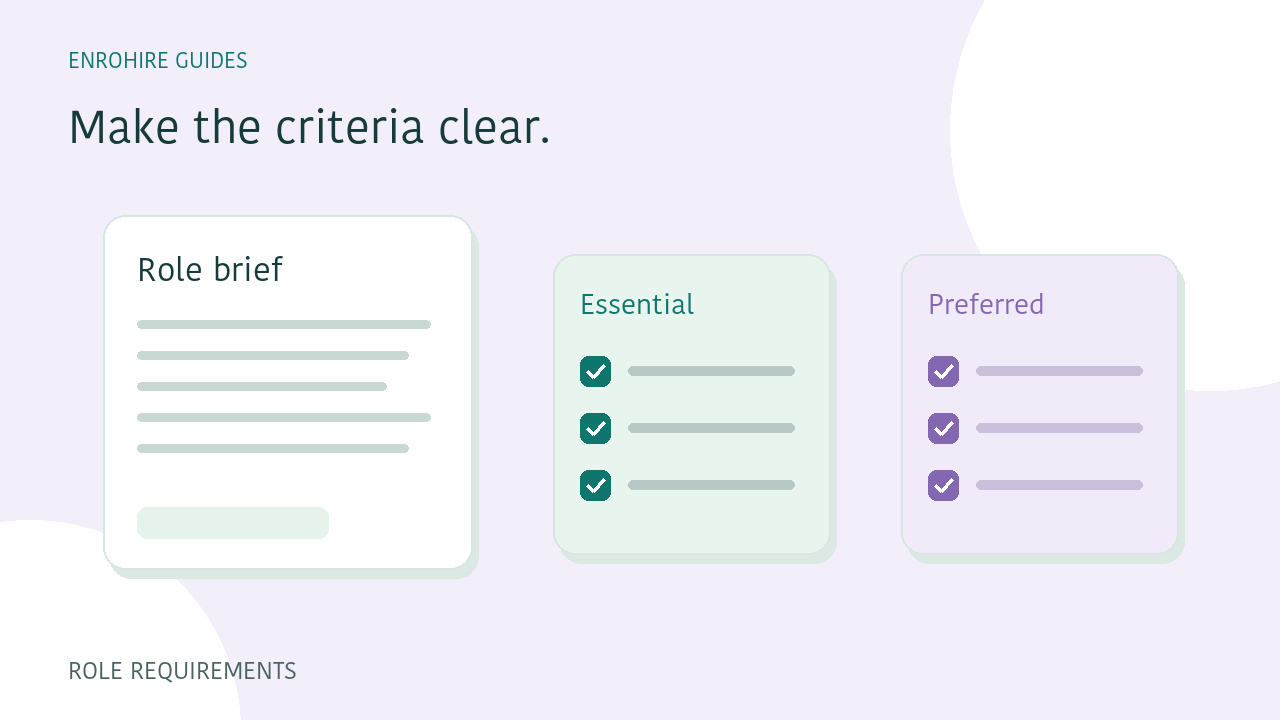
Write role requirements that are easier to screen against
Separate essential and preferred skills, describe relevant experience and use clear requirement groups before comparing applicants.
Read guide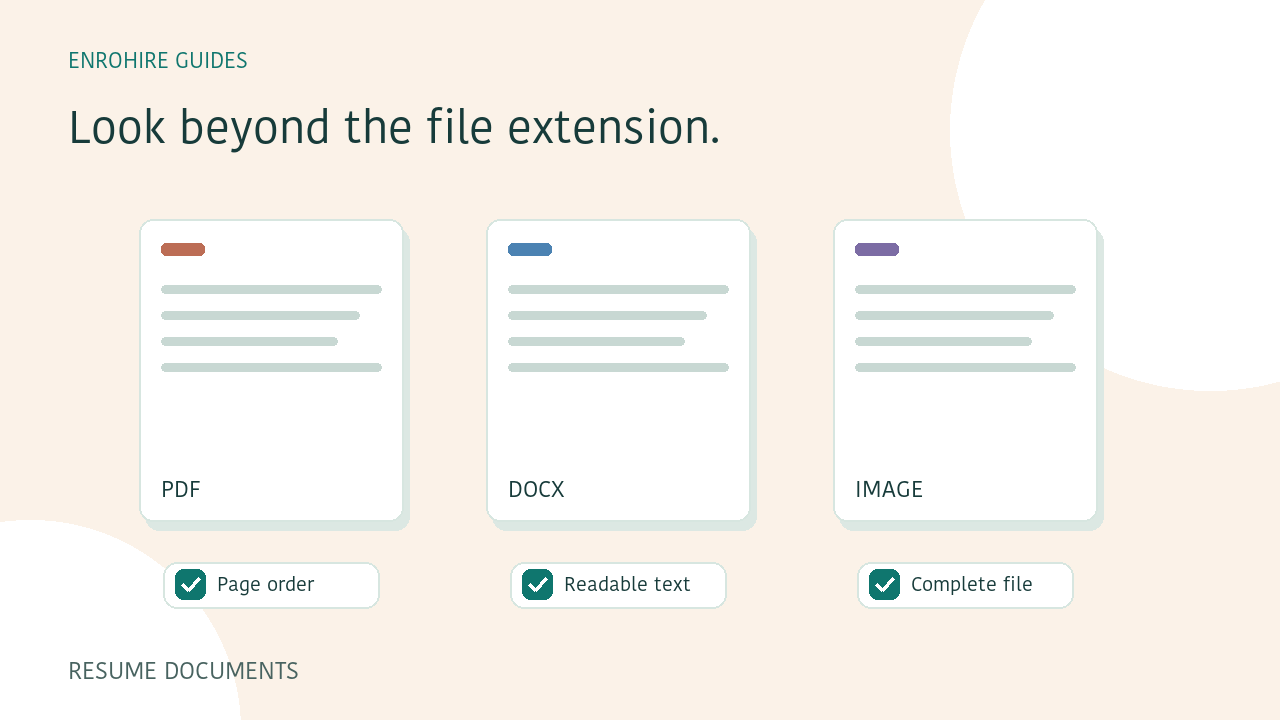
PDF or Word resumes: a checklist before you upload
Check resume formats, readability, page order and contact information before submitting PDF, Word or image files for screening.
Read guide